> ## Documentation Index
> Fetch the complete documentation index at: https://auth0-cq3uo.mintlify.site/llms.txt
> Use this file to discover all available pages before exploring further.
# Enable Universal Links Support in Apple Xcode
Universal links establish a verified relationship between domains and applications, so both your Auth0 Application settings and your iOS application need to be in sync. To do this, you need to provide Auth0 with Apple Team ID and Bundle Identifier. You can enable universal links support for your Auth0-registered application using the Auth0 Dashboard.
## Obtain Apple Team ID and Bundle Identifier
1. To find your Apple **Team ID**, go to your [Apple developer account summary page](https://developer.apple.com/membercenter/index.action#accountSummary).
2. To find your iOS application's **Bundle identifier**, go to its [Xcode project settings](https://developer.apple.com/library/content/documentation/IDEs/Conceptual/AppDistributionGuide/ConfiguringYourApp/ConfiguringYourApp.html) page.
## Provide Apple Team ID and Bundle Identifier to Auth0
1. Go to [Dashboard > Applications > Applications](https://manage.auth0.com/#/clients) and select the name of the application to view.
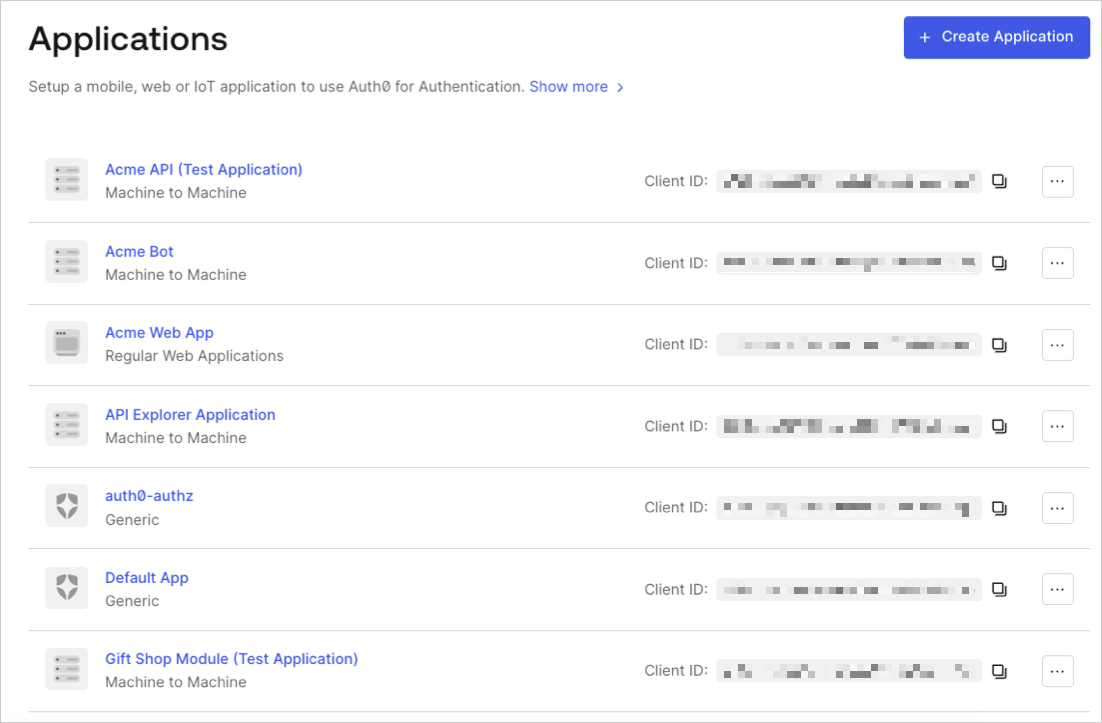
2. Scroll to the bottom of the **Settings** page, and select **Show Advanced Settings**.
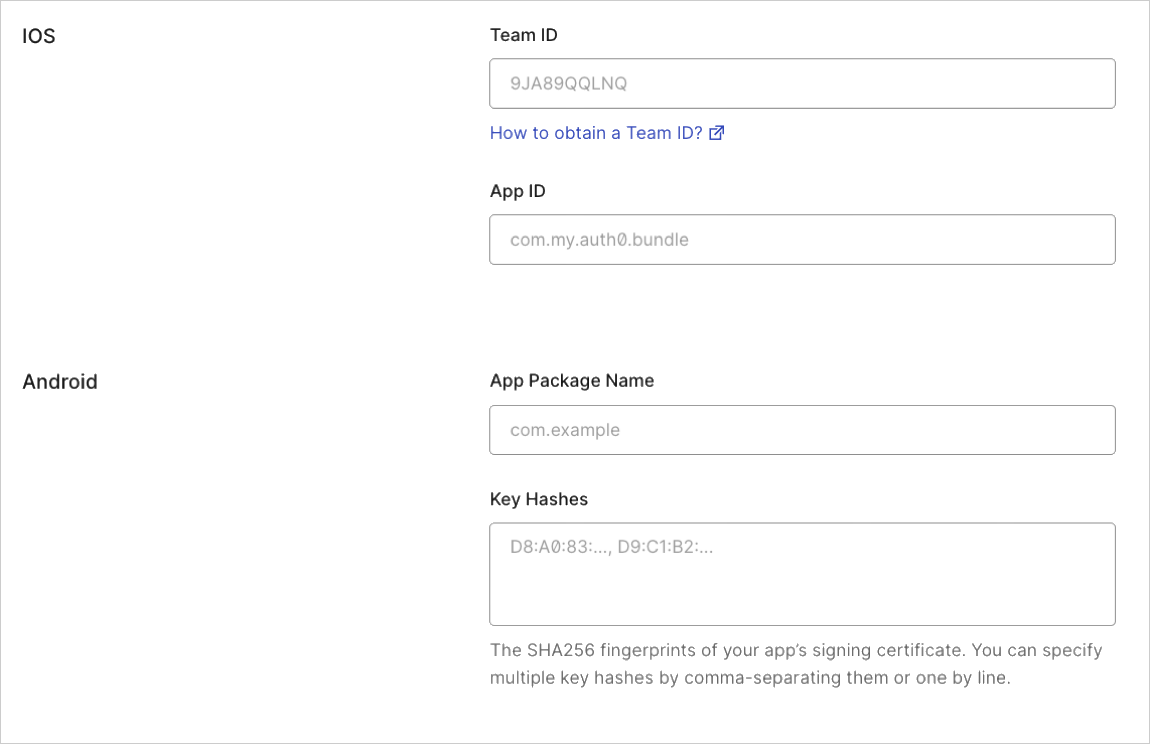
3. Select **Device Settings**, provide the **Team ID** and the **App bundler identifier** values for your iOS application and select **Save Changes**.
## Test link
Check whether the universal links `apple-app-site-association` file is available for your application by navigating to the following URL in your browser: `{yourDomain}/apple-app-site-association`
If the link is successful, you will see the following JSON (formatted for readability):
```json lines theme={null}
{
"applinks": {
"apps": [],
"details": [{
"appID": "86WQXF56BC.com.auth0.Passwordless-Email",
"paths": ["/ios/com.auth0.Passwordless-Email/*"]
}]
}
}
```